

What Is the Best Ergonomic Setup for Adults Over 50?
Home Office Ergonomics for Adults Over 50. Working from home can be comfortable, convenient, and productive. The best ergonomic setup is not necessarily the most expensive one.
For most adults over 50, the foundation is a supportive chair, a monitor positioned at a comfortable height, a keyboard and mouse that allow relaxed shoulders and neutral wrists, adequate lighting, supported feet, and regular changes in position throughout the day.
Working from home can be comfortable, convenient, and productive, but only when your workspace works for your body.
For adults over 50, spending several hours at a computer can sometimes make small problems more noticeable. A monitor that is too low may leave your neck feeling tired. A chair without adequate support can make your lower back uncomfortable. A keyboard positioned too high may place unnecessary stress on your wrists and shoulders.
The good news is that you don’t necessarily need an expensive home office makeover.
Small adjustments to your chair, desk, monitor, keyboard, lighting, and daily routine can make a significant difference in how comfortable you feel while working.
There is also no single “perfect” workstation or posture that works for everyone. Ergonomics is about creating a setup that fits your body and allows you to change positions throughout the day. The goal is to reduce awkward positions and unnecessary strain, not to sit rigidly in one position for hours.
Here is how to create a more comfortable and practical home office after 50.
Why Home Office Ergonomics Matters After 50
Ergonomics is the science of designing a workspace and the way you perform tasks so that they better fit the person using them.
When you work at a computer, several parts of your body are involved continuously: your eyes, neck, shoulders, arms, wrists, back, hips, and legs.
A poorly arranged workstation can encourage awkward positions. For example, a monitor that is too low may encourage you to bend your head forward, while a keyboard that is too high can cause you to lift your shoulders or bend your wrists.
Over time, these positions may contribute to discomfort and fatigue.
This doesn’t mean that every ache is caused by your desk. Persistent, severe, worsening, or unexplained pain should be discussed with a healthcare professional.
But if you notice that your neck, shoulders, back, or wrists become uncomfortable after working at your computer, your workstation is a reasonable place to start looking for improvements.
Read also: How to Make Your Home Safer After 50
Start With Your Chair
Your chair is one of the most important parts of a home office.
A good office chair doesn’t have to be the most expensive model available. What matters is whether it can support your body and be adjusted to your needs.
Ideally, your chair should:
- Support your lower and upper back comfortably
- Allow your feet to rest securely
- Let your shoulders remain relaxed
- Allow your elbows to stay close to your body
- Give you enough room to change positions
- Allow you to sit without feeling as though you have to lean toward your computer
OSHA recommends a well-designed, appropriately adjusted chair that supports the back, legs, buttocks, and arms while reducing awkward postures. Adjustability is particularly useful because it allows you to change your position during the workday.
What if your feet don’t reach the floor?
This is a surprisingly common problem.
If raising your chair is necessary to get your arms into a comfortable position at the desk, your feet may no longer rest comfortably on the floor.
In that situation, use a footrest.
You don’t necessarily need a specialized ergonomic footrest. A sturdy, stable support can work as long as it keeps your feet secure and doesn’t create a tripping hazard.
Mayo Clinic also recommends using a footrest when chair height makes it difficult to keep the feet comfortably supported.
Adjust Your Desk Instead of Fighting It
Many home offices use a standard desk or dining table that wasn’t designed specifically for computer work.
That’s okay.
The important question is whether the desk allows you to position your computer and keyboard without forcing your body into an awkward position.
You should have enough space underneath the desk for your:
- Knees
- Thighs
- Feet
- Legs
Avoid filling the space under your desk with storage boxes, bags, or other objects. Limited legroom can make it harder to sit comfortably.
OSHA recommends enough clearance under the work surface to accommodate the legs and feet and notes that desks should allow different working postures.
If your desk is too high and cannot be adjusted, raising your chair and using a footrest may help.
If the desk is too low, the solution may be more complicated. Depending on the furniture, raising the desk itself may be more practical than trying to lower your chair.
The goal is to create a relationship between your chair, desk, keyboard, and monitor that allows your body to remain relatively neutral.
Position Your Monitor Correctly
Your monitor has a surprisingly large influence on your neck and upper back. If the screen is too low, you may repeatedly bend your head forward.
If it is too high, you may tilt your head backward. Neither is ideal.
A good starting point is to place the monitor directly in front of you, with the top of the screen at or slightly below eye level. The screen should generally be about 20 to 40 inches from your eyes, depending on the size of the display and what allows you to read comfortably without leaning forward. OSHA and Mayo Clinic both give this approximate range. You should be able to read the screen while keeping your head and torso relatively upright.
What if you have trouble reading small text?
Don’t automatically move the monitor closer. Instead, consider increasing the text size or display scaling on your computer. This can make reading more comfortable without forcing you to lean toward the screen.
If you wear bifocals, monitor height may need additional adjustment. Mayo Clinic notes that lowering the monitor slightly can sometimes make viewing more comfortable for people who wear bifocals.
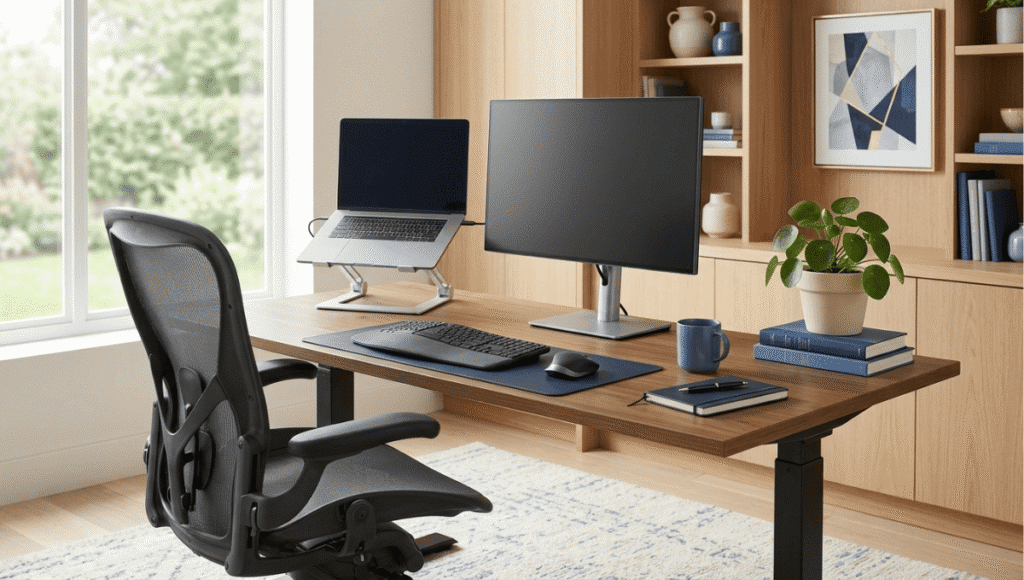
Laptop Users Need Special Attention
Laptops are convenient, but they create an ergonomic challenge.
The screen and keyboard are attached to each other. If you raise the screen to a comfortable viewing height, the keyboard rises too high for comfortable typing.
If you lower the keyboard to a comfortable typing position, the screen may be too low. For people who work on a laptop for several hours a day, one practical solution is to use:
- A laptop stand
- An external keyboard
- An external mouse
This separates the screen from the keyboard and allows you to position each component more appropriately.
Both OSHA and Mayo Clinic identify the low screen and cramped keyboard as common ergonomic challenges with laptop use.
Keep Your Keyboard and Mouse Close
Your keyboard should be directly in front of you. Your shoulders should remain relaxed rather than lifted toward your ears. Your elbows should stay relatively close to your body, and your wrists should remain as straight and neutral as possible.
OSHA recommends positioning the keyboard so that the wrists and forearms remain aligned and the shoulders relaxed. Your mouse should also be close enough that you don’t have to repeatedly reach across the desk.
A simple test is this:
Can you use your keyboard and mouse without reaching your arm forward or sideways?
If not, move them closer. Small adjustments can make a surprisingly noticeable difference.
Don’t Ignore Your Wrists
Many people focus on their back and neck but forget their hands and wrists. When typing, try to avoid keeping your wrists bent upward, downward, or sideways for long periods. Your hands, wrists, and forearms should be reasonably aligned.
A keyboard that is too high or too low can make this difficult. OSHA notes that awkward wrist positions can contribute to hand, wrist, and shoulder discomfort.
A wrist or palm support may improve comfort for some people, but it shouldn’t be used as a reason to maintain an awkward wrist position. The keyboard itself should be adjusted first.
Give Your Eyes a Break
Ergonomics isn’t only about muscles and joints. Your eyes also work hard when you’re looking at a screen for hours. Glare can make reading more difficult and may contribute to eye fatigue and headaches.
OSHA recommends arranging lighting to reduce glare from windows, overhead lights, and lamps. Try positioning your monitor so that a bright window isn’t directly reflected in the screen.
You can also adjust:
- Screen brightness
- Text size
- Room lighting
- Monitor angle
If you frequently find yourself leaning toward the screen to read, increase the text size before changing your entire workstation.
And remember: needing larger text isn’t something to be embarrassed about. A comfortable workstation should accommodate your vision rather than forcing you to strain.
Don’t Sit in the Same Position All Day
This may be one of the most important ergonomic lessons. Even a well-designed workstation isn’t a reason to remain completely still for hours.
OSHA specifically recommends changing working positions regularly, making small adjustments, stretching the hands and body, standing up, and walking around periodically. Some tasks can also be performed while standing.
Think of your workstation as a place where you can move, not a place where you are supposed to freeze into one “perfect” posture.
For example, you might:
- Stand during a phone call
- Walk around while listening to an audio meeting
- Get up to refill your water
- Change your sitting position
- Stand for part of a reading task
- Take a short walking break between work tasks
You don’t have to turn every break into an exercise session. The simple act of changing position can help prevent long periods of static sitting.
What About a Standing Desk?
Standing desks have become popular, but you don’t have to buy one to create a good ergonomic workspace. A height-adjustable desk can be useful because it allows you to alternate between sitting and standing.
However, standing all day isn’t necessarily the goal either. The more useful approach is to have options. You might sit for part of the morning, stand for a meeting, sit again for focused computer work, and walk around during phone calls.
If you use a standing desk, make sure the monitor and keyboard can also be positioned comfortably. Raising the desk without adjusting the rest of the workstation can simply replace one awkward position with another.
Pay Attention to Your Phone
Your phone can undo some of the ergonomic improvements you’ve made to your desk. If you frequently hold your phone between your shoulder and ear while typing, writing, or working, your neck may remain in an awkward position.
Instead, consider using speakerphone or a headset when you need to talk and work at the same time. Also keep your phone within easy reach rather than repeatedly twisting your body to find it.
Organize Your Desk Around Your Most Common Tasks
A comfortable workstation should reflect what you actually do. If you use a notebook every few minutes, keep it nearby.
If you frequently reference printed documents, consider a document holder positioned close to your monitor. If you use your mouse constantly, make sure it is easy to reach.
Frequently used items should generally be close enough that you don’t have to repeatedly stretch, twist, or lean forward. OSHA recommends positioning frequently used components and materials so they can be reached without unnecessary reaching or twisting.
Your desk doesn’t have to look like a picture from a home-office magazine. It needs to work for you.
A Simple 5-Minute Home Office Ergonomic Check
You can evaluate your workstation right now. Sit in your normal working position and ask yourself:
1. Is my head balanced over my torso?
You shouldn’t have to constantly push your head forward to see the screen.
2. Are my shoulders relaxed?
If your shoulders are creeping upward while you type, something may need adjusting.
3. Are my elbows reasonably close to my body?
If you’re reaching forward or sideways all day, move your keyboard and mouse.
4. Are my wrists relatively straight?
Look at your hands while typing. If your wrists are significantly bent, adjust your keyboard or chair.
5. Are my feet supported?
Your feet should be comfortably supported by the floor or a footrest.
6. Is my monitor directly in front of me?
You shouldn’t have to repeatedly turn your head to see your primary screen.
7. Am I sitting still for long periods?
If so, introduce regular position changes and short movement breaks.
This type of workstation check is consistent with OSHA’s ergonomic evaluation approach, which focuses on neutral positioning and identifying areas that may need adjustment.

You Don’t Need to Buy Everything at Once
One of the biggest mistakes people make when improving a home office is assuming they need to purchase an entirely new setup.
Usually, that’s not the best place to start.
Before buying anything, adjust what you already have.
Raise or lower your chair.
Move your monitor.
Bring the keyboard closer.
Move the mouse.
Clear space under the desk.
Improve the lighting.
Increase the computer’s text size.
Add a footrest if your feet aren’t supported.
Only after making these changes should you decide whether additional equipment would genuinely solve a problem.
Sometimes a relatively inexpensive accessory can make a major difference. Other times, the problem is simply that existing equipment hasn’t been adjusted correctly.
When Your Workspace Isn’t the Whole Problem
It’s important not to assume that every symptom you experience while working is an ergonomic problem.
If you develop persistent pain, significant weakness, numbness, tingling, swelling, or symptoms that interfere with normal activities, consider talking with a healthcare professional.
Likewise, if changing your workstation doesn’t improve ongoing discomfort, it may be worth getting professional advice rather than continuing to adjust your chair and monitor indefinitely.
Ergonomics can reduce unnecessary physical stress, but it isn’t a substitute for medical evaluation when symptoms need attention.
The Best Home Office Is One That Lets You Move
Creating an ergonomic home office after 50 doesn’t have to mean buying expensive furniture or following a complicated set of rules.
Start with the basics:
Support your back.
Keep your feet supported.
Relax your shoulders.
Keep your wrists relatively neutral.
Place your monitor at a comfortable height.
Keep your keyboard and mouse close.
Reduce screen glare.
And most importantly, change positions throughout the day.
The goal isn’t perfect posture.
The goal is a workspace that allows you to work comfortably, see clearly, move regularly, and avoid unnecessary strain. Your body changes throughout the day. Your workstation should give you enough flexibility to change with it.
And that’s perhaps the most useful ergonomic principle for anyone working from home after 50: Don’t try to find one perfect position. Create a workspace that makes comfortable movement easy.
This article is for informational purposes only and does not replace professional medical advice, diagnosis, or treatment. If you have persistent pain, numbness, weakness, or other concerning symptoms, speak with a qualified healthcare professional.

Lauren is the founder of PainFreeAfter50.com and a dedicated researcher in joint health and healthy aging. After developing chronic joint pain in her early 50s, she spent years reviewing clinical studies and testing natural approaches to find real solutions. Today she shares honest, evidence-based guidance to help adults over 50 manage pain, improve mobility, and reclaim their quality of life.


1 thought on “Home Office Ergonomics for Adults Over 50”